Managing Bookings
Once customers start booking, you'll see their reservations in your dashboard. This page shows you how to manage them.
The Bookings Section
The bookings section in your sidebar has 6 views:
| View | What it shows |
|---|---|
| All Bookings | Every reservation, with filters |
| Upcoming | Future reservations (what you check daily) |
| Active Dining | Customers currently at your restaurant |
| Completed | Past reservations that finished |
| Cancelled | Cancellations with reasons |
| Verification | Bookings needing payment confirmation |
All Bookings
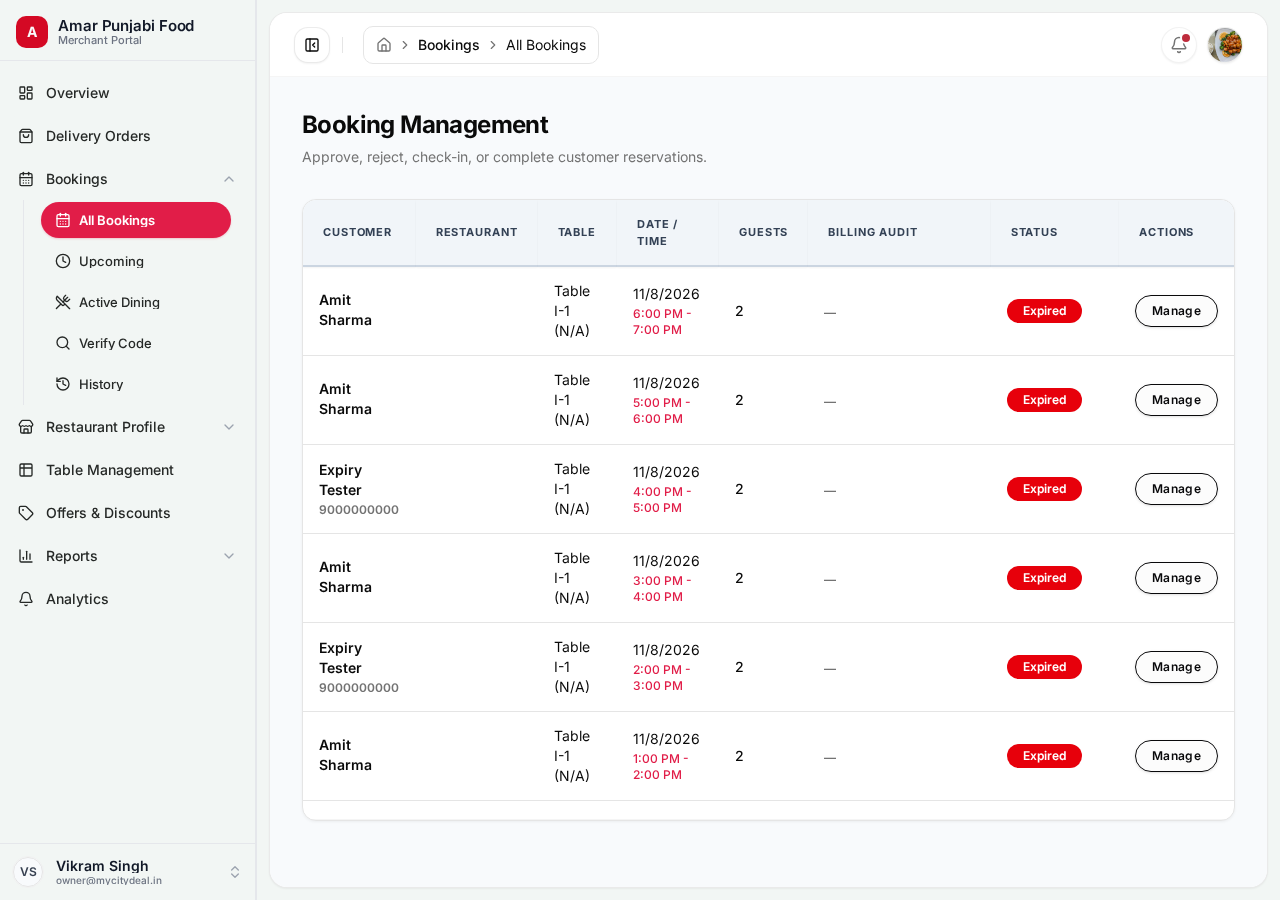
This is your master view of all reservations. You can:
- Filter by date range, status, customer name
- Sort by date, party size, status
- Search by customer name or phone
- Export to CSV for accounting
Upcoming Bookings
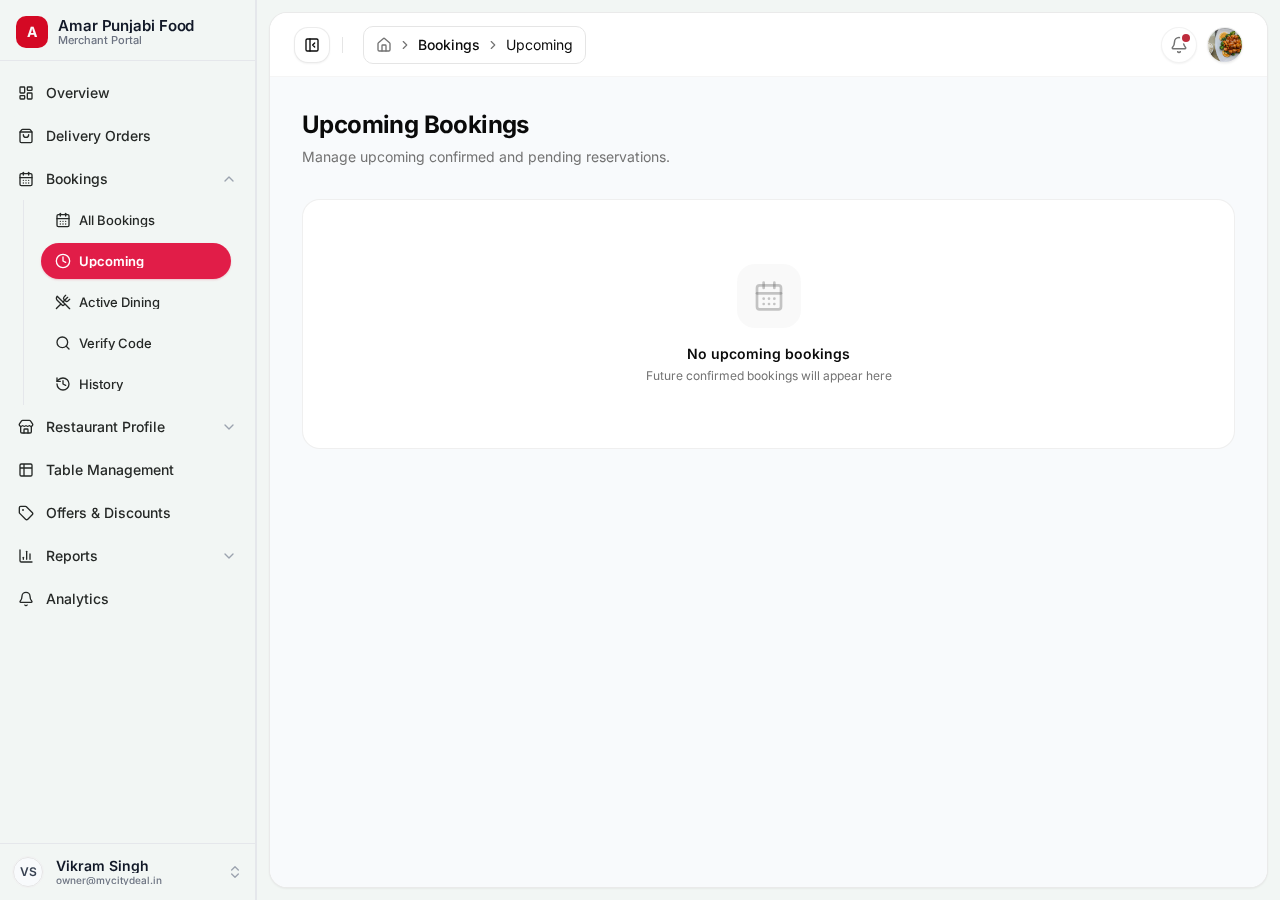
This is your most-used view. Open it every morning to see who's coming today.
Each booking shows:
- Customer name + phone
- Date and time
- Party size
- Special requests (e.g., "window seat", "birthday cake")
- Action buttons (Confirm / Reject / Cancel)
How to Confirm / Reject
If you have "Requires confirmation: ON":
- Click on a pending booking
- Review customer details + special requests
- Click "Confirm" to accept or "Reject" (with reason) to decline
Customer gets an automatic email with your decision.
If "Requires confirmation: OFF": Bookings are auto-confirmed when customers book.
Active Dining
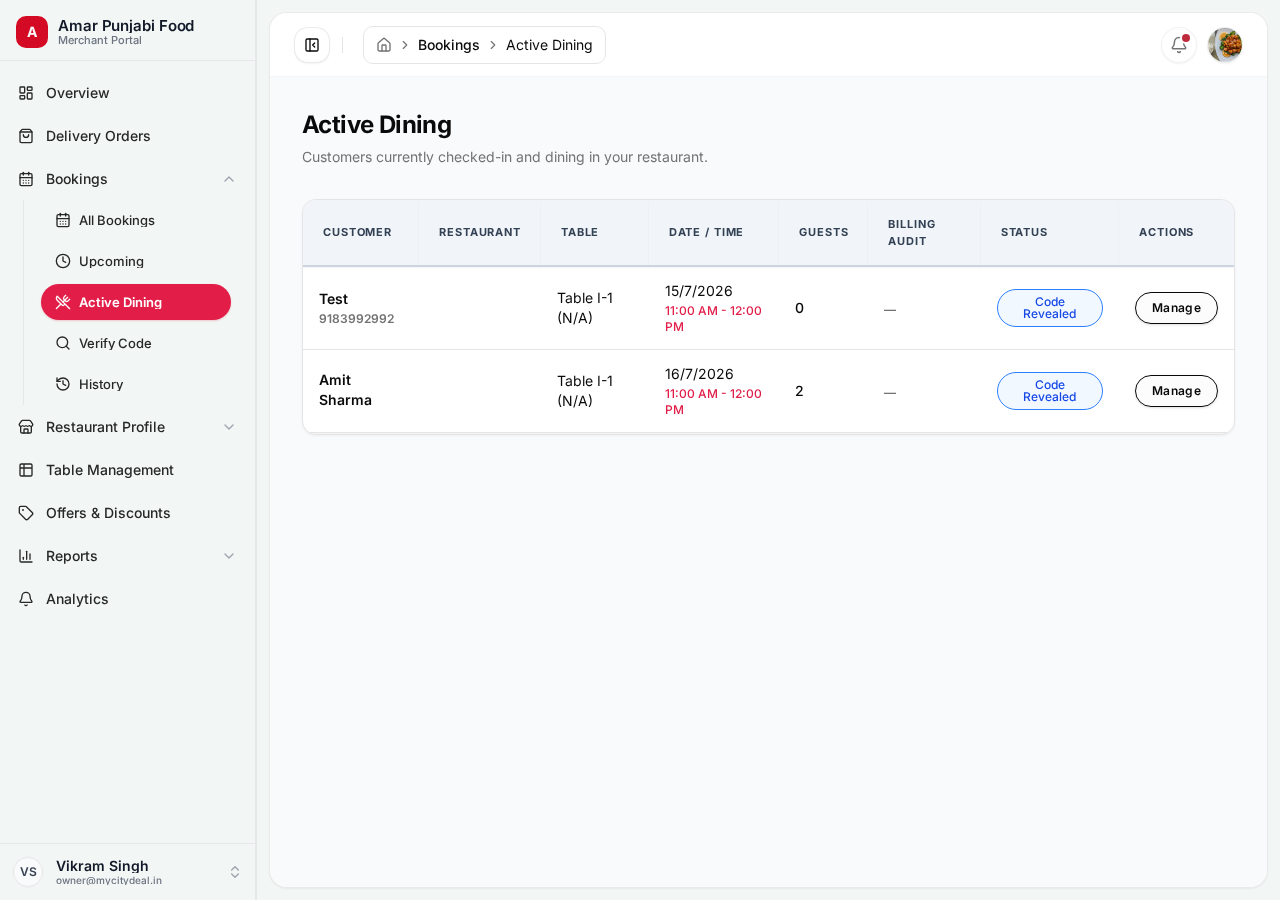
Customers currently at your restaurant. Use this to:
- See who's at which table
- Check how long they've been dining
- Mark them as completed when they leave
- Enter the bill amount for commission calculation
When a customer arrives:
- Find them in this view
- Click "Mark as active" to confirm they're seated
- Status changes from
CONFIRMEDtoACTIVE
When they leave:
- Click "Complete"
- Enter the bill amount
- Status changes to
COMPLETED
Completed Bookings
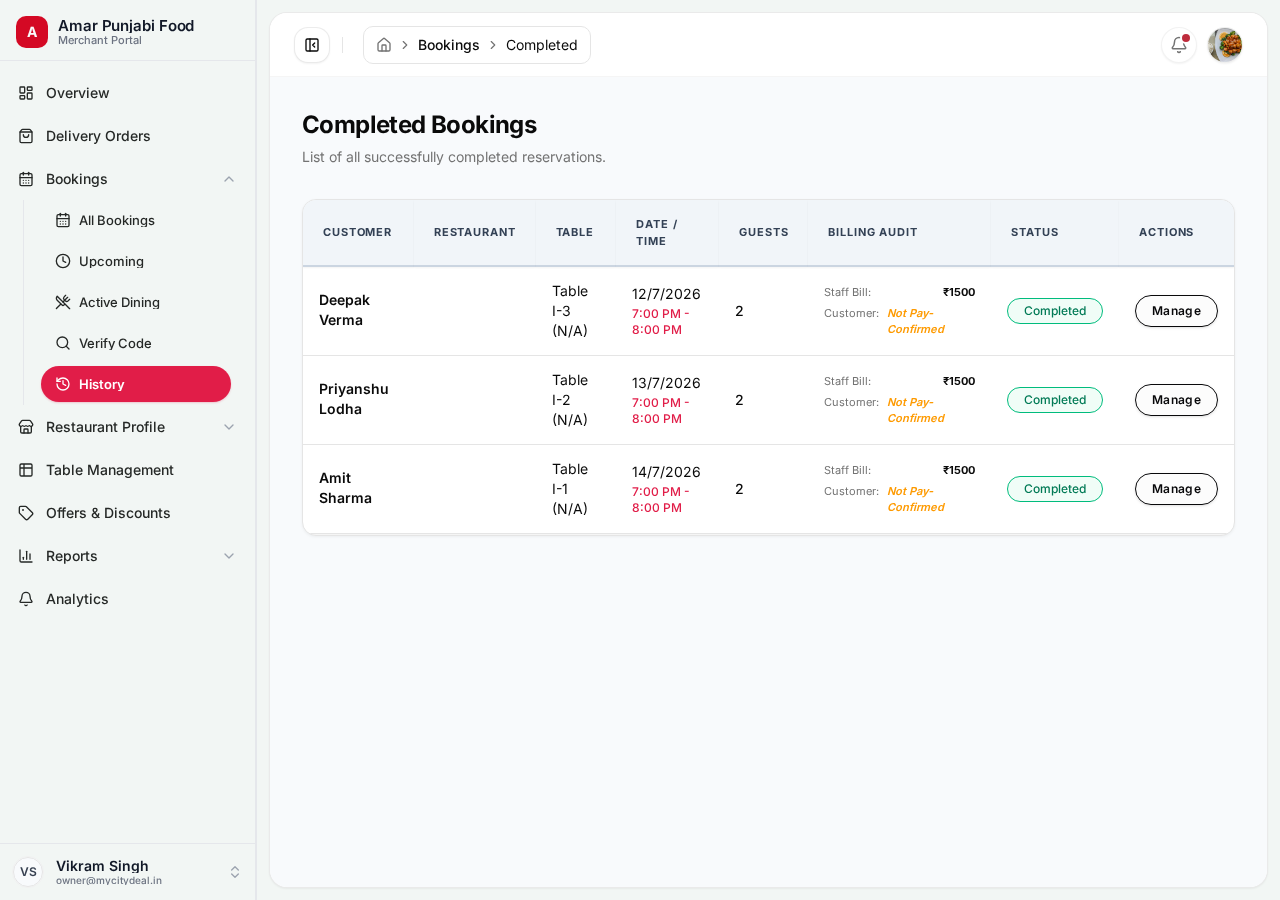
Past reservations that finished. Used for:
- Records and history
- Calculating commission
- Showing in reports
Cancelled Bookings
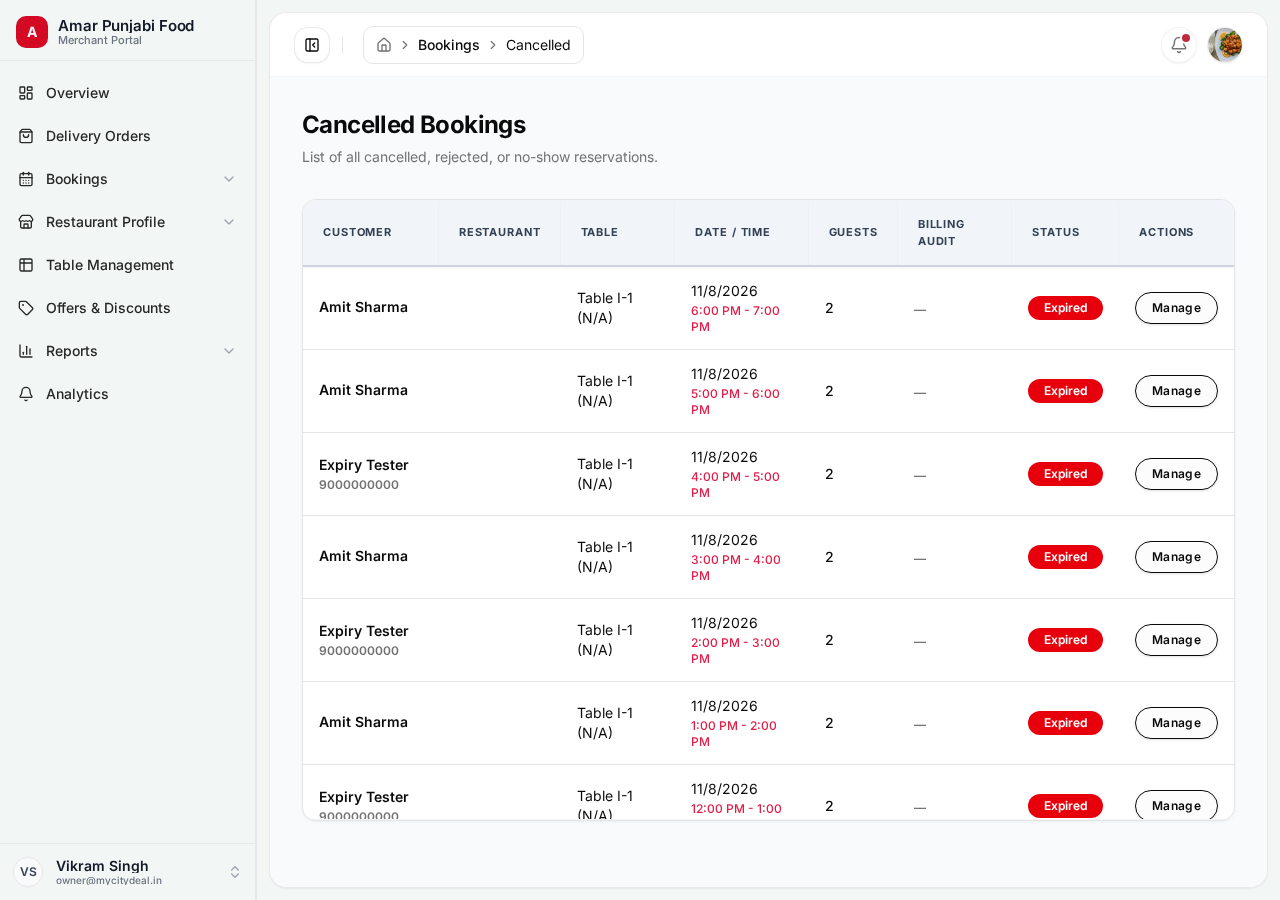
Cancellations are tracked with reasons (customer-side or your-side). Helps you identify patterns:
- Are certain time slots getting cancelled more?
- Are customers or the restaurant cancelling more often?
Verification Bookings
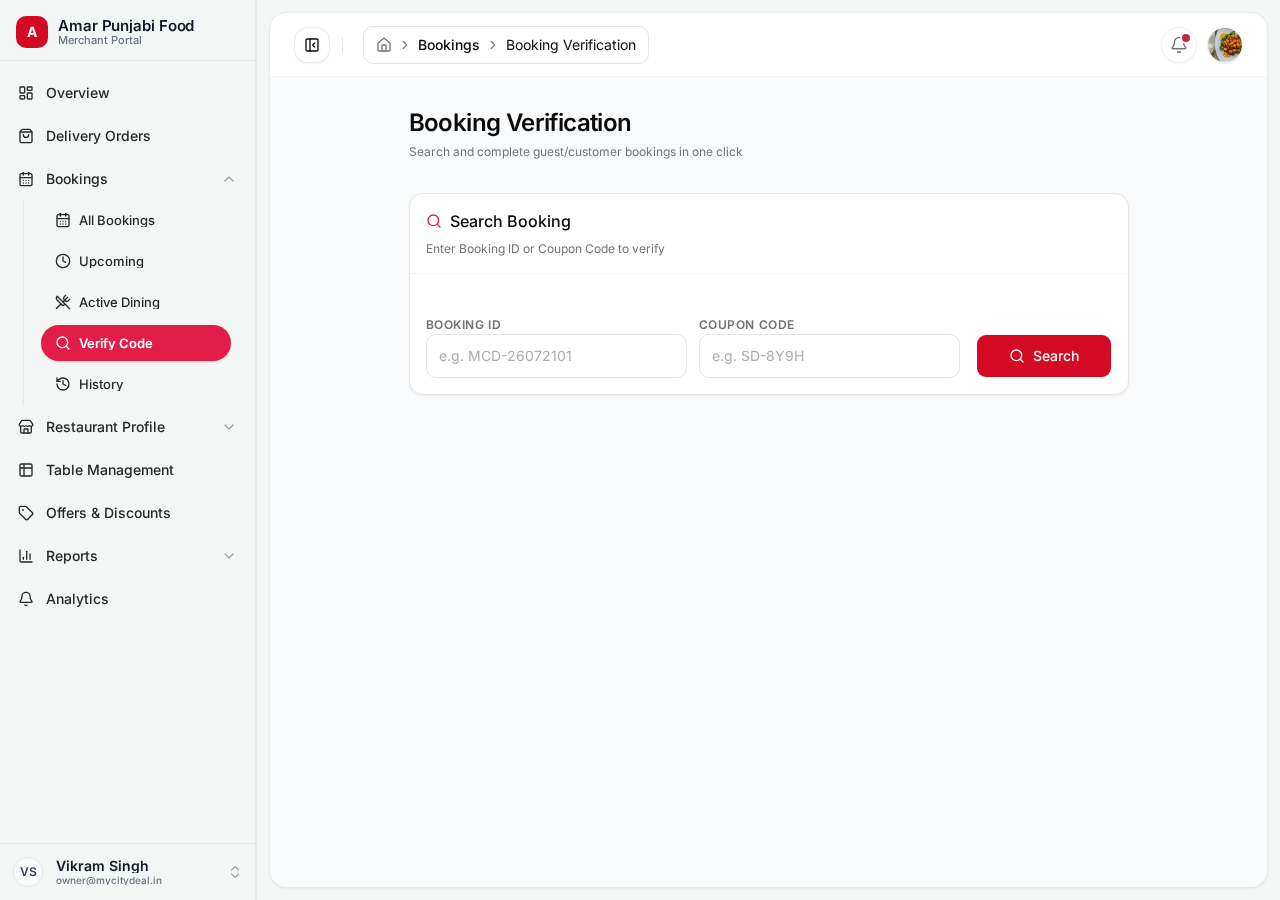
Bookings where you need to confirm payment — typically for advance deposit bookings. The customer's UTR (Unique Transaction Reference) appears here. You verify it matches your bank statement.
Booking Status Lifecycle
PENDING ──> CONFIRMED ──> ACTIVE ──> COMPLETED
   │           │            │           │
   └──────────>│            │           │
       REJECTED └──────────>│           │
                  CANCELLED                │
                                          ▼
                                    Payment + Settlement
Best Practices
- ✅ Check the dashboard 3 times a day (morning, noon, evening)
- ✅ Confirm/reject bookings within 2 hours of receiving them
- ✅ Use the cancellation reason field — it helps you spot patterns
- ✅ Enter bill amounts accurately (used for commission calculation)
- ❌ Don't forget to mark customers as
ACTIVEwhen they arrive - ❌ Don't leave bookings in
PENDINGfor too long
Next
Head to Offers & Coupons to learn how to create promotions.
Ready to grow your restaurant?
Join 50+ restaurants on MyCityDeal and start receiving bookings today.