Basic Info
This is the first and most important sub-page. Without saving this, all other profile sections are disabled. Once you save, your restaurant enters the admin approval queue automatically.
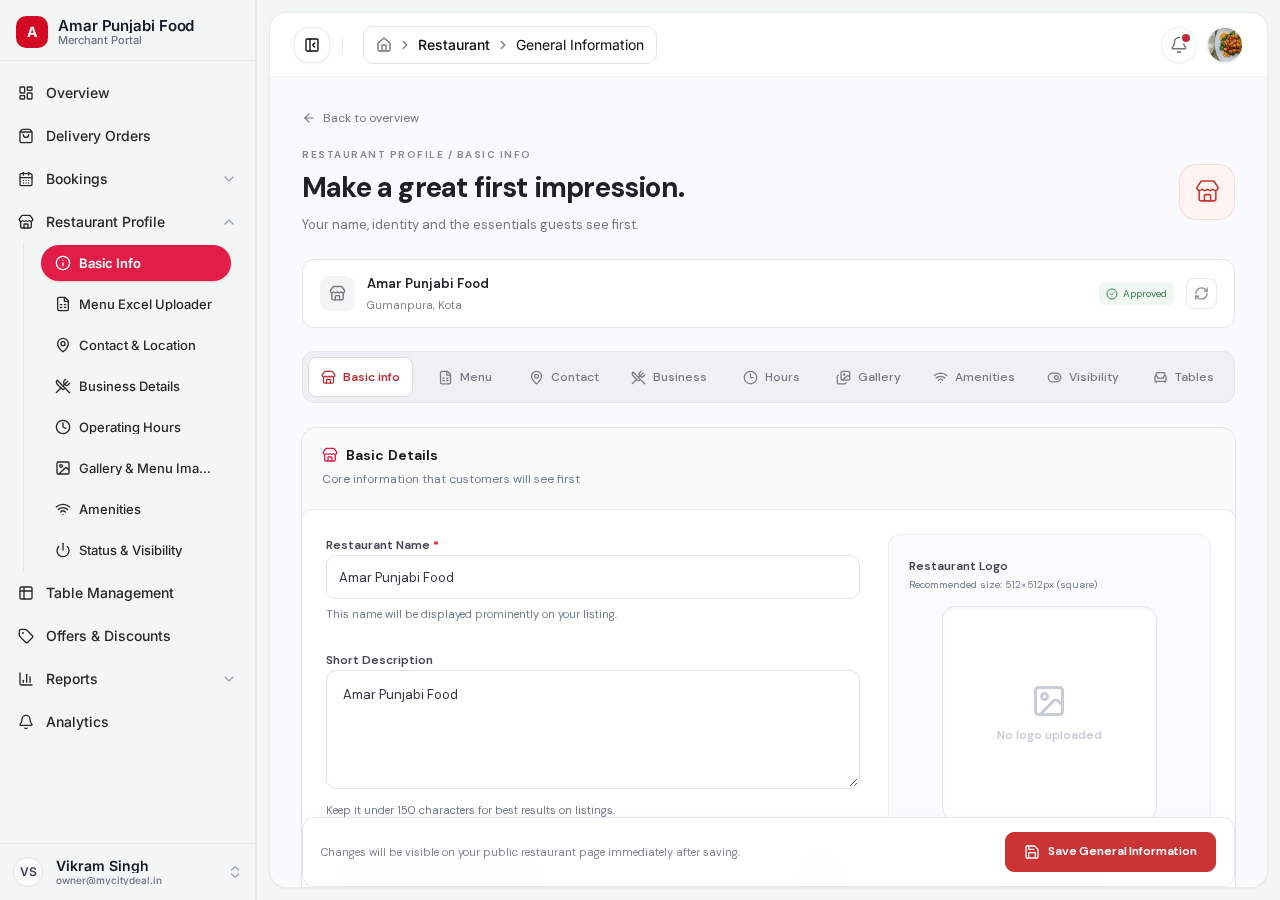
You'll see 9 tabs at the top of the form (Basic info, Menu, Contact, Business, Hours, Gallery, Amenities, Visibility, Tables). You're currently on the Basic Info tab (highlighted in red).
What you'll fill
| Field | What it is | Example |
|---|---|---|
| Restaurant name | Your business name | Biryani Blues |
| Short description | 1-2 sentence tagline (visible on listings) | Authentic biryani in the heart of Talegpor |
| Logo | Square image, recommended 512×512 px | Your logo file |
| Requires confirmation | Toggle: do you want to manually approve each booking? | ON for fine dining, OFF for casual |
| UPI ID | Your UPI for receiving payments | biryaniblues@okhdfcbank |
| UPI Payee Name | Name on your UPI account | Biryani Blues Pvt Ltd |
Restaurant Name
This is the most important field. It's shown:
- On every listing card
- On your public profile page
- In your booking confirmations
- In your customer's history
💡 Tip: Make sure the name matches your actual restaurant name and branding. If you change it later, the URL (
/restaurants/your-slug) will change too.
Short Description
This appears right under your restaurant name on listing cards. Keep it short — under 150 characters works best.
Good examples:
Authentic Hyderabadi biryani since 1998Cozy Italian trattoria with handmade pastaFamily-run South Indian restaurant in Bandra
Logo
- Recommended size: 512 × 512 px square
- Formats: JPG, PNG, or WebP
- Maximum size: 8MB
- Shows on:
- Your listing card
- Your detail page header
- Booking confirmations
If you don't upload a logo, we'll show a generic placeholder.
Requires Confirmation
This is a setting, not just data. It controls your booking flow:
- OFF (default): Bookings are auto-confirmed. Customer picks a slot, makes a reservation, and you're done.
- ON: Every booking needs your manual approval. You see pending bookings in your dashboard and must approve or reject each one.
When to turn ON:
- You're a fine-dining restaurant with limited seating
- You have special requirements (private events, dietary restrictions, etc.)
- You want full control over who books
When to leave OFF:
- You're a casual dining restaurant
- You want maximum convenience for customers
- You're open to walk-ins too
Online ordering is NOT on this page
Food orders (delivery and takeaway) are switched on Status & Visibility → Accept online food orders, not here. This page only covers your name, description, logo, booking confirmation and UPI details.
- Switch ON and at least one available dish on the menu → customers can order delivery or takeaway.
- Switch ON but the menu has no available dish → the restaurant still shows as closed for online orders, because there is nothing to cook.
- Switch OFF → not listed for food orders at all, even with a full menu.
UPI ID and Payee Name
These are optional. Fill them if:
- You want customers to pay you directly via UPI when they book
- You use UPI for settlement outside MyCityDeal's commission system
These are visible to customers on your booking confirmation page.
Saving
Click "Save General Information" at the bottom. You'll see a green success message.
Once you save:
- The other 8 tabs become accessible
- Your restaurant enters the admin approval queue with status
Pending - You can still edit your profile — your changes won't affect the approval decision
Head to Menu in the sidebar to continue setting up.
Ready to grow your restaurant?
Join 50+ restaurants on MyCityDeal and start receiving bookings today.