Delivery Orders
Turn Accept online food orders ON on Status & Visibility (it covers delivery and takeaway) and make sure at least one dish is available on your menu — a restaurant with an empty menu is kept closed for online orders even when the switch is ON. Customers can then order food for delivery through MyCityDeal. This page explains how those orders show up and how to manage them.
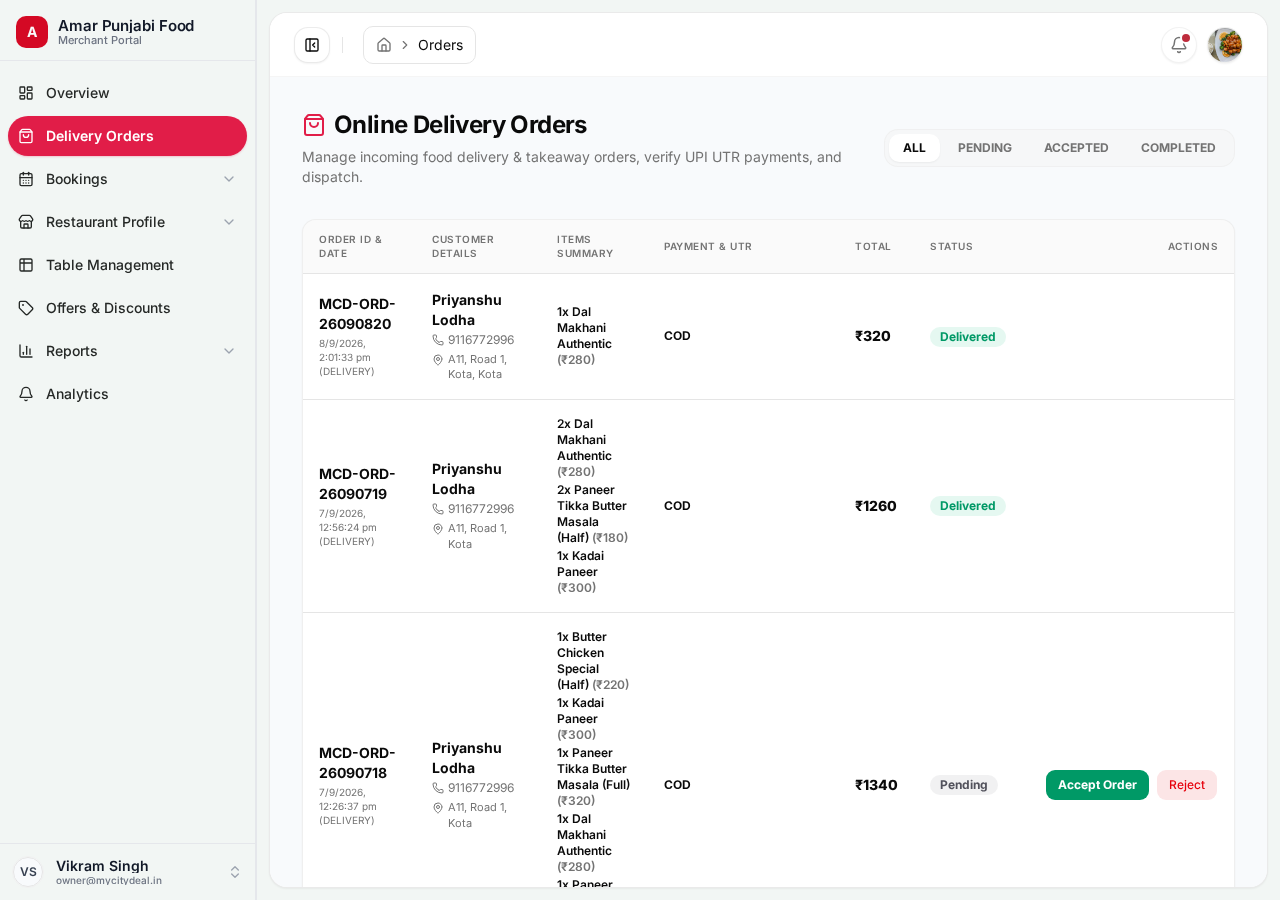
How a Delivery Order Works
[Customer]                  [Backend]                  [You]
  │                                │
  │ Browse restaurant             │
  │   "Order online" tab         │
  │                                │
  │ Add items to cart            │
  │                                │
  │ Checkout (pay via UPI)       │
  │                                │
  │ POST /api/orders              │
  ├──────────────────────────────>│
  │                                │ Create order
  │                                │ status: PLACED
  │                                │ Send notification
  │                                ├─────────────────────>
  │ Order confirmation            │   (dashboard + email)
  │<──────────────────────────────┤
Order Statuses
Each order goes through these stages:
PLACED ──> PREPARING ──> READY ──> OUT_FOR_DELIVERY ──> DELIVERED
   │            │           │              │
   └───────────>│           │              │
       CANCELLED │           │              │
                  └──────────>│              │
                     REJECTED                 │
                                              ▼
                                          Customer receives
| Status | Meaning | Your action |
|---|---|---|
PLACED |
Customer just ordered | Accept or reject |
PREPARING |
You're making the food | Update when ready |
READY |
Food is ready for pickup | Notify delivery partner |
OUT_FOR_DELIVERY |
On the way to customer | Track |
DELIVERED |
Customer received it | Mark complete |
CANCELLED |
Customer or you cancelled | Note reason |
REJECTED |
You declined the order | Note reason |
How to Update Order Status
- Go to
/dashboard/orders - Find the new order (status: PLACED)
- Click on it to see details
- Click the appropriate action button:
- Accept → moves to PREPARING
- Reject → moves to REJECTED (with reason)
- Mark Ready → moves to READY
- Out for Delivery → moves to OUT_FOR_DELIVERY
- Delivered → moves to DELIVERED
Customer sees each status change in real-time on their app/website.
Order Details You See
For each order, you can view:
- Order ID (e.g.,
#1234) - Customer name + phone + delivery address
- Items ordered + quantities
- Total bill amount
- Special instructions (e.g., "extra spicy", "no onion")
- Payment status (paid via UPI, etc.)
- Order time + estimated delivery time
What the Customer Pays for Delivery
The complete rule — the formula, where the distance comes from, the worked examples and the guards — is written up in How Delivery Fees Are Calculated. This section is the short version.
Delivery is charged by distance, from your kitchen to the address on the order — not per restaurant, per item, or per order value. You control the rule in Status & Visibility; the platform does the measuring and adds the fee at checkout.
A restaurant with no per-km rate keeps the existing flat fee for every order.
A restaurant with a free radius and a rate is charged for the kilometres beyond that radius only, and the checkout shows the full amount struck through with what is actually payable beside it.
The number in the cart and the number on the order are the same number: the fee is recalculated when the order is placed, so it cannot be edited on the way in.
If the drop-off address cannot be located, the order is not guessed at a discount — the flat fee applies.
A returning customer's saved address is already selected when their checkout opens, so the fee is measured from a real address from the first second. They can still switch to another saved address or type a new one.
Delivery messages — an address beyond your limit, a pricing change that was saved — arrive as toasts instead of text stranded in the middle of a page.
The order you receive carries the measured distance, so a dispute about a fee is a lookup, not an argument. If a customer disputes a fee, the two settings that produced it are on Status & Visibility and the arithmetic is in How Delivery Fees Are Calculated.
Delivery Partners
MyCityDeal may integrate with delivery partners (Zomato, Swiggy, Dunzo, etc.) depending on your city. The flow varies:
- Self-delivery: You handle your own fleet
- Partner delivery: A third-party handles it; you just prepare food
Check your dashboard for the active setup in your city.
Refunds and Disputes
If a customer disputes an order or requests a refund:
- We notify you via email
- You can view the order history
- You can approve or contest the refund request
- The dispute is resolved through MyCityDeal's mediation.
Always respond to disputes within 24 hours — delayed responses count against you in our partner score.
Next
Head to Analytics to learn how to track your performance with visual charts.
Ready to grow your restaurant?
Join 50+ restaurants on MyCityDeal and start receiving bookings today.